1
Say hello
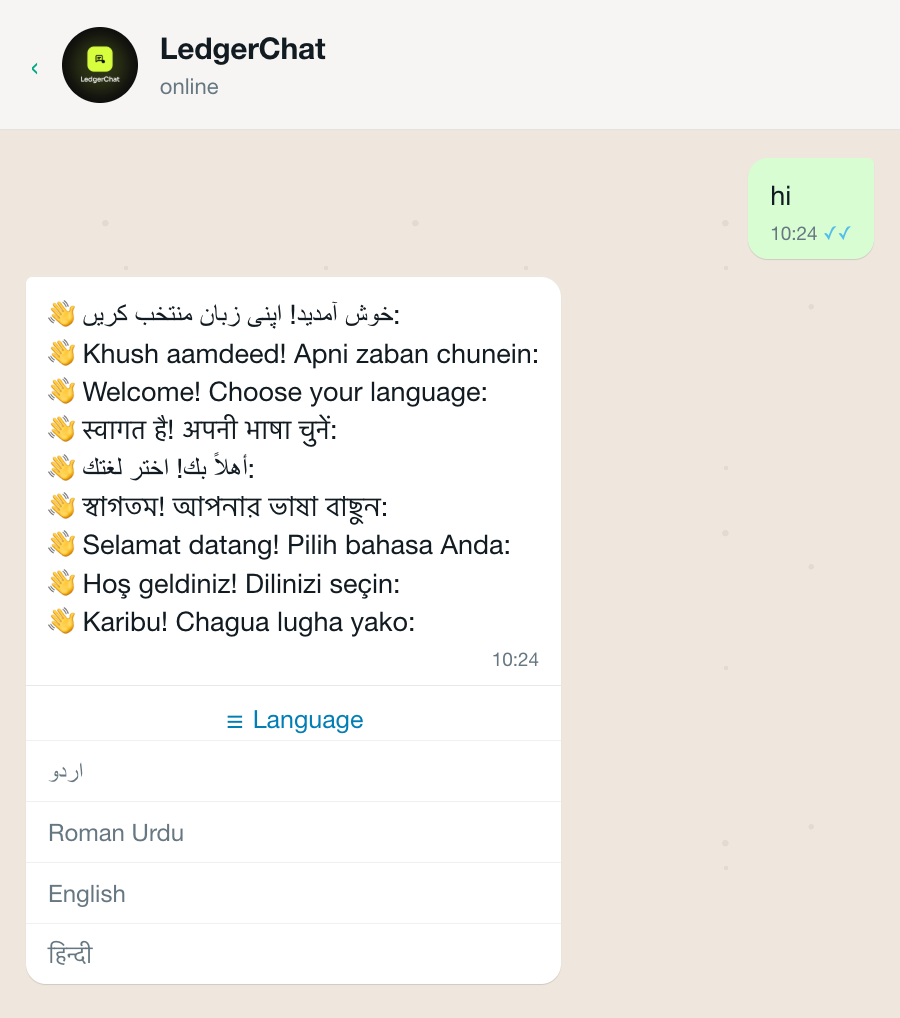
Message the number. There is nothing to install and no account to make — the WhatsApp account you already have is the account. It asks which language you want, and it will keep speaking that one.
How it works
From the first message to a PDF your customer can keep. Nothing here is a mock-up: every picture below came out of the software, and the script that takes them runs against a real database.
● Real screenshots, regenerated whenever the product changesThe shop below is in South Asia, in its own currency. See the United States · See the Gulf
This is where the books are kept. Everything below happens inside WhatsApp, on whatever phone you already own.
Message the number. There is nothing to install and no account to make — the WhatsApp account you already have is the account. It asks which language you want, and it will keep speaking that one.
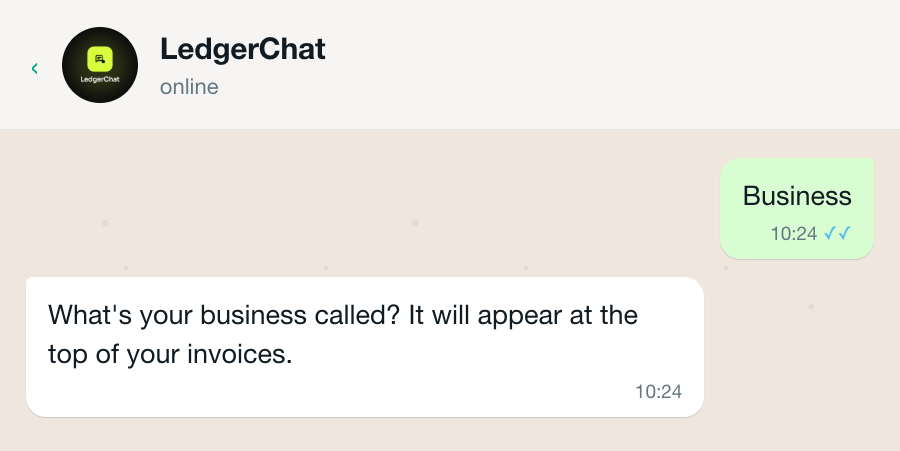
A shop, your own money, or both kept separately under one number. Then the name that goes on your documents. That is the whole of setup; it takes under a minute and you never see it again.
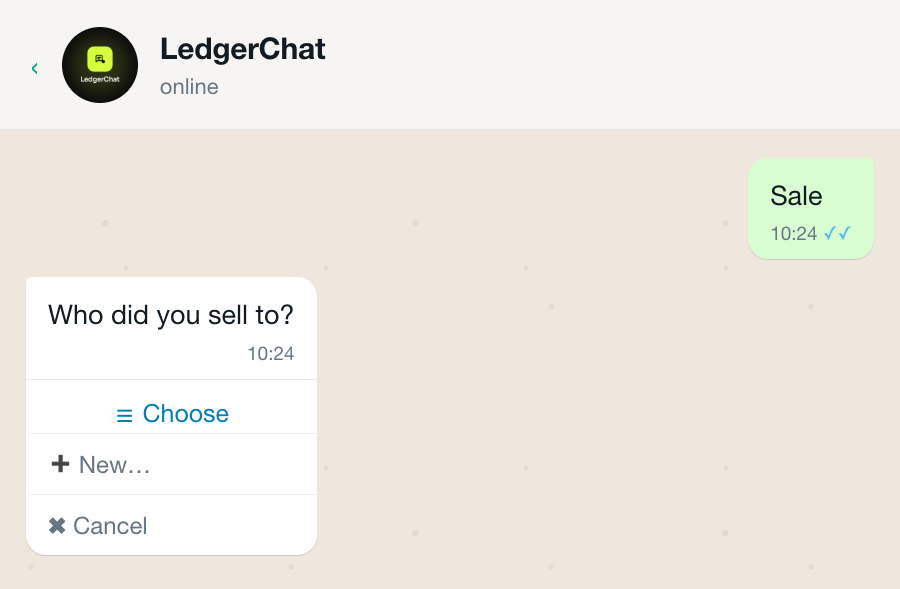
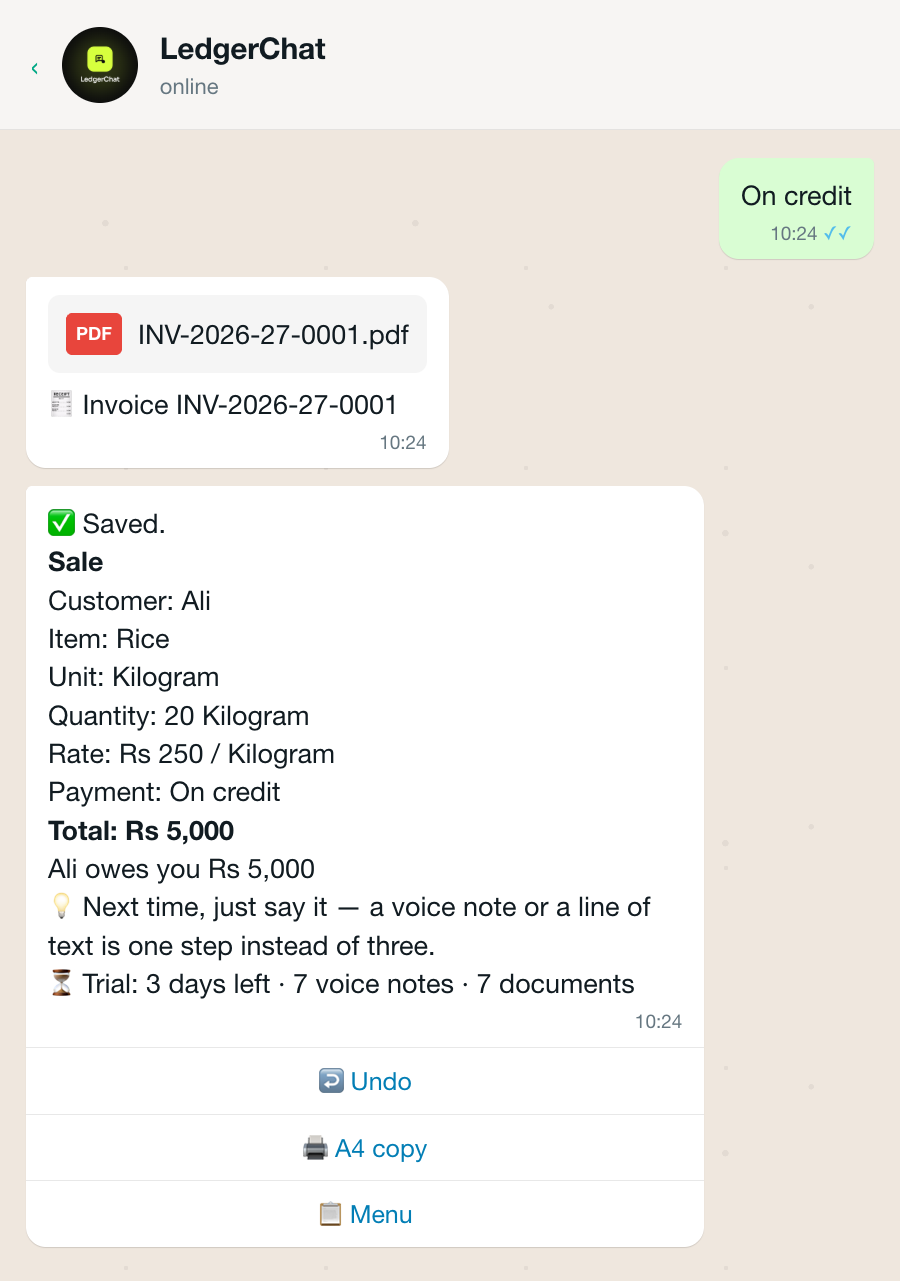
Tap Sale and answer what it asks: who, what, how many, at what price, paid now or on credit. Every answer is one tap or a few characters. You can also simply say the whole thing — “sold 20 kg rice to Ali for 250, on credit”, typed or as a voice note — and it will fill the same form for you to check.
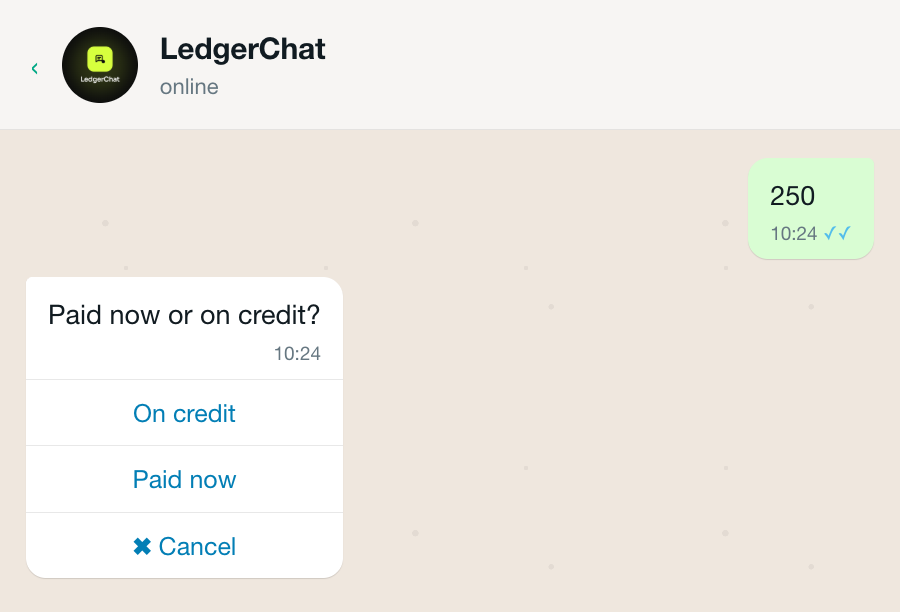
Paid now, or on credit. This is the answer that decides which two accounts the entry touches, which is why it is asked rather than assumed.
It shows you exactly what it recorded, what the customer now owes, and a numbered PDF invoice you can forward straight to them. Undo is right there if it was wrong — and undo posts a reversing entry rather than deleting anything, which is what keeps the books trustworthy.
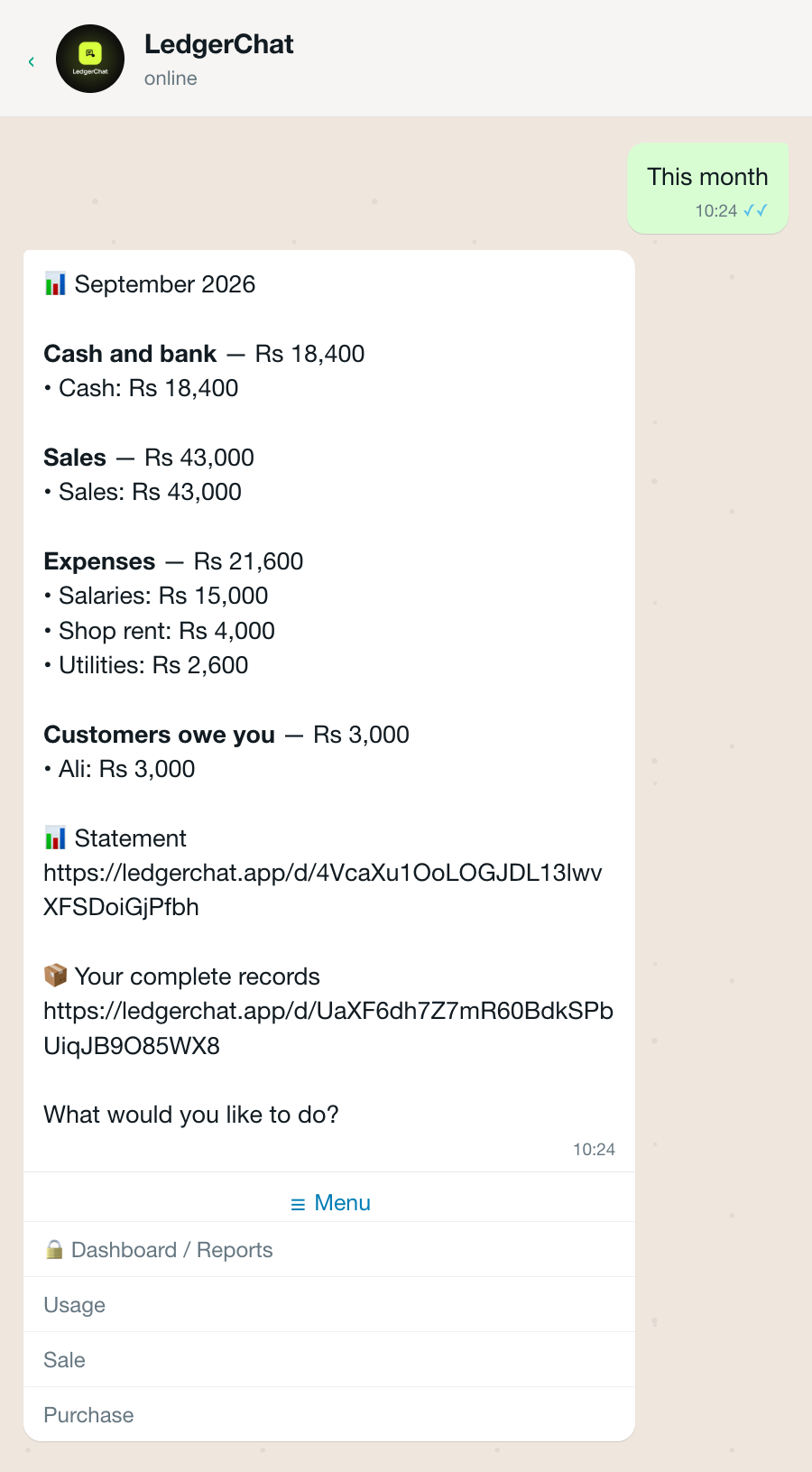
Sales, purchases, expenses, what you are owed and what you owe — in the chat, in your own language, whenever you ask. On the first of the month it arrives without being asked.
One tap, and the books you have been keeping in a chat are on a screen you can read properly.
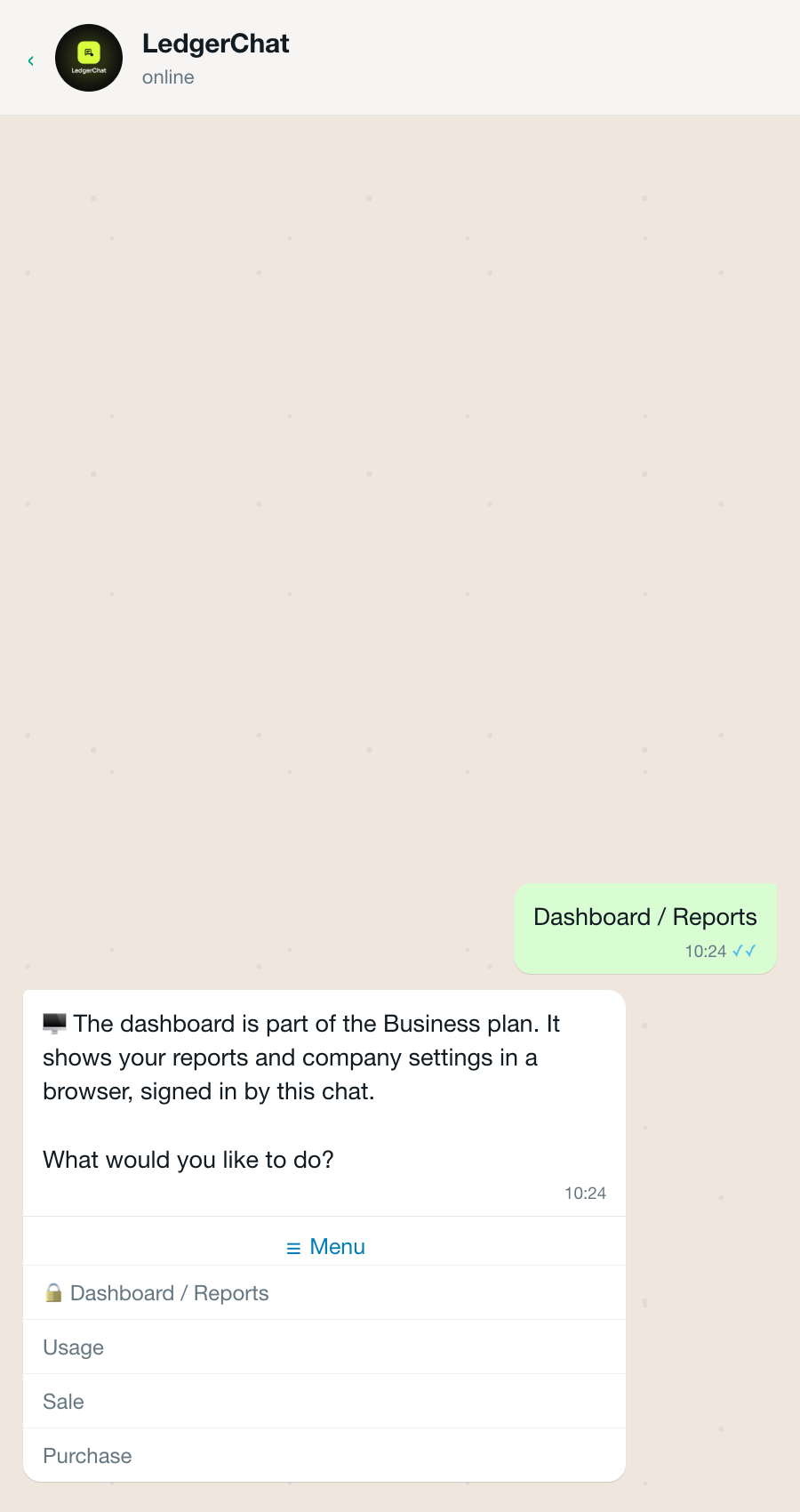
Tap the link in the chat
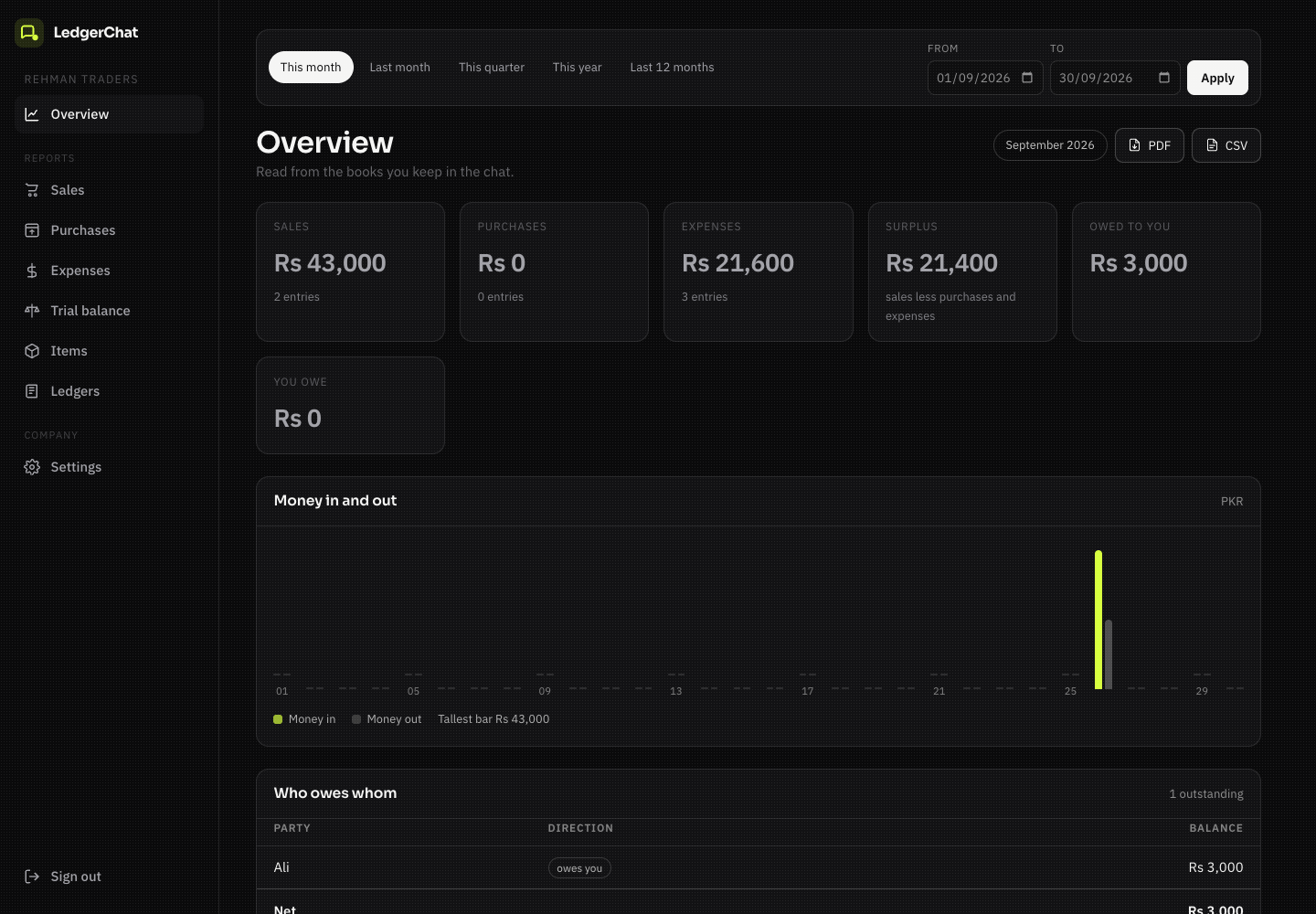
and your books are on a bigger screen
The dashboard is part of the Business plan. It reads the same books; it never writes to them, because entries are made in the chat where each one is confirmed before it is saved.
Send “menu” and tap Dashboard / Reports. The bot hands you a link that works once and lasts thirty minutes. That is the whole login — there is no password, because there is no account to have a password for.
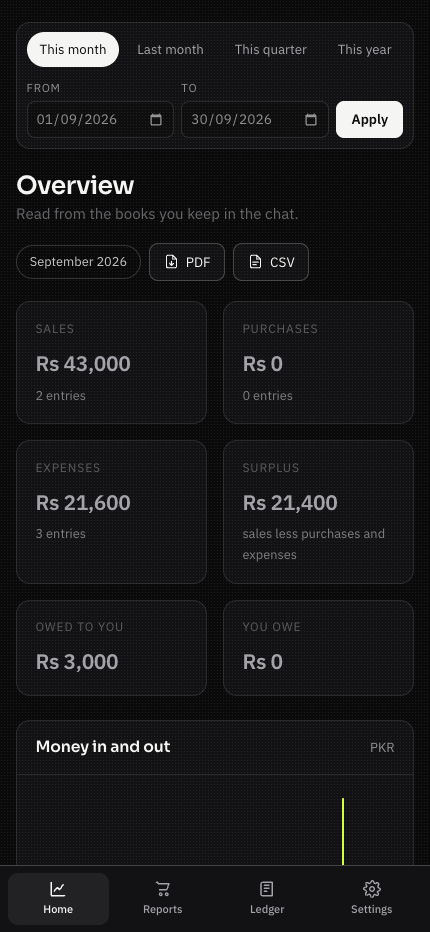
Headline figures, money in against money out, and who owes whom. Every tile is a way into the report behind it, and every page takes whatever date range you pick.
Sales, purchases, expenses, a trial balance and an item list. Each one shows the accounts behind the total and the entries behind the accounts, over any range you choose.
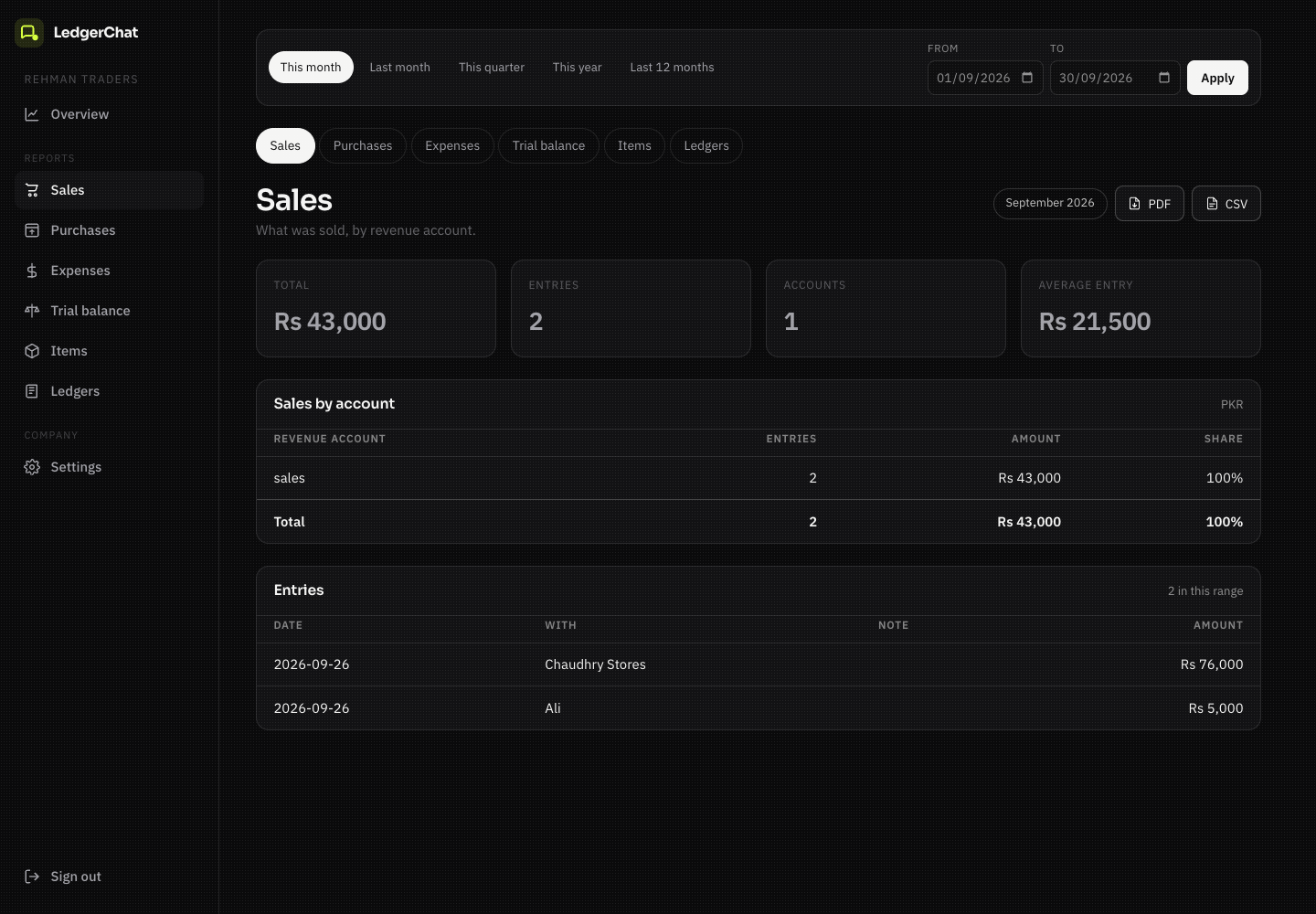
Pick any customer, supplier, expense head or cash account and read its own statement: opening balance, every entry with its debit and credit, a running balance, closing. This is the page you want when somebody disputes what they owe.
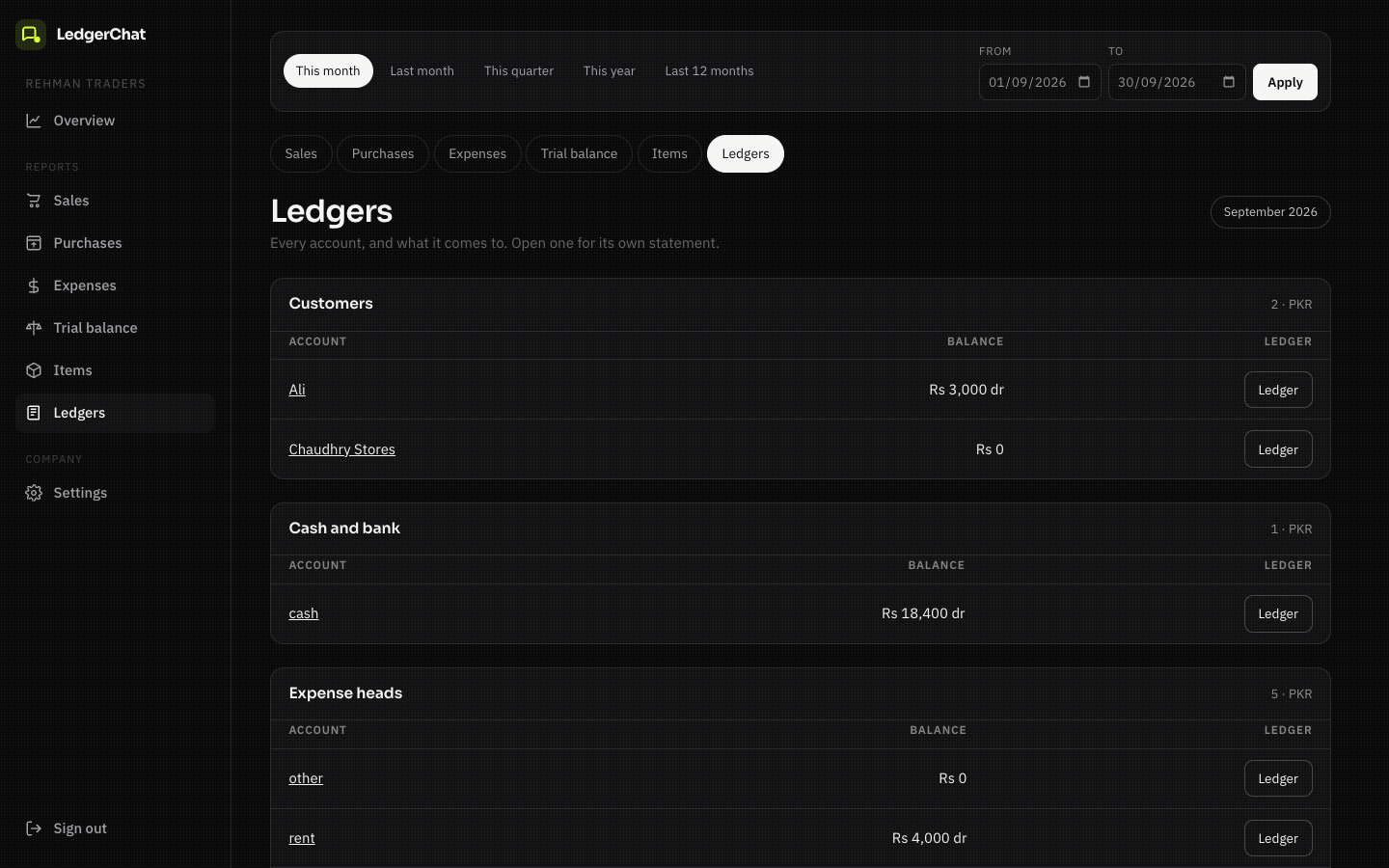
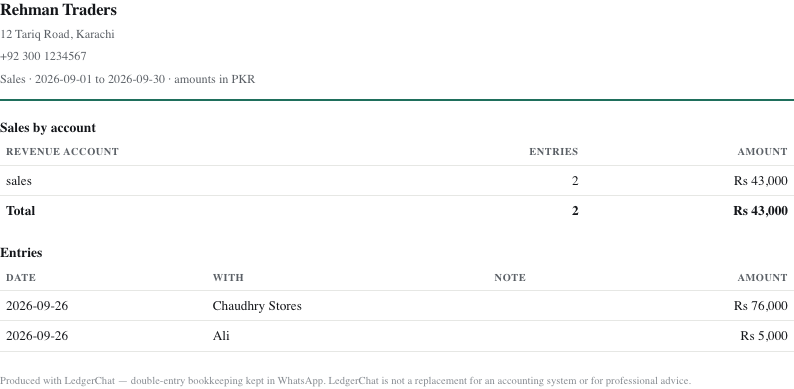
Every report downloads as a PDF to send on, or a CSV to do your own sums with. The PDF is a real document with your name, address and phone number on it — not a screenshot of a web page.
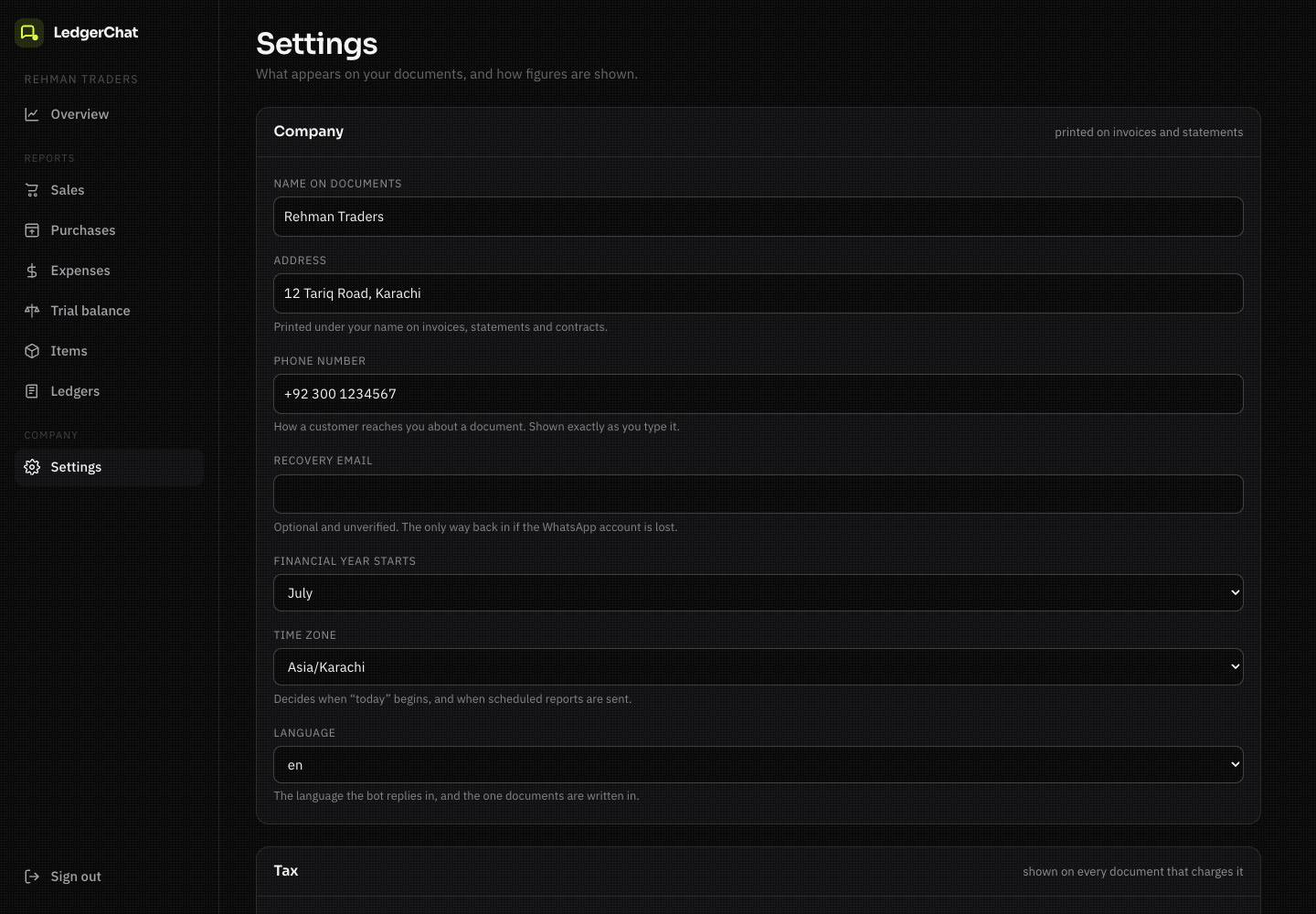
Your name, address, phone number, tax rate and registration number, your financial year and your time zone. Changes apply to documents printed from now on; entries already recorded are untouched.
The dashboard is opened from WhatsApp, so it is opened on a phone more often than on a laptop. It is built for that: a bar along the bottom where your thumb already is, and tables that scroll inside themselves instead of pushing the page sideways.
Twelve languages, in the chat and on every document — Arabic, Hindi, Bengali and Urdu each with their own embedded font, so a name typeset in Nastaliq prints as Nastaliq rather than as boxes. The dashboard reads in your language too, and if you would rather read the accounting words in English there is a switch for exactly that: your language, or English, and nothing in between.
No card, no install. Send one message and your books exist.
LedgerChat is not a replacement for an accounting system, or for professional advice. It is a proper set of double-entry books, kept somewhere you can always reach them.